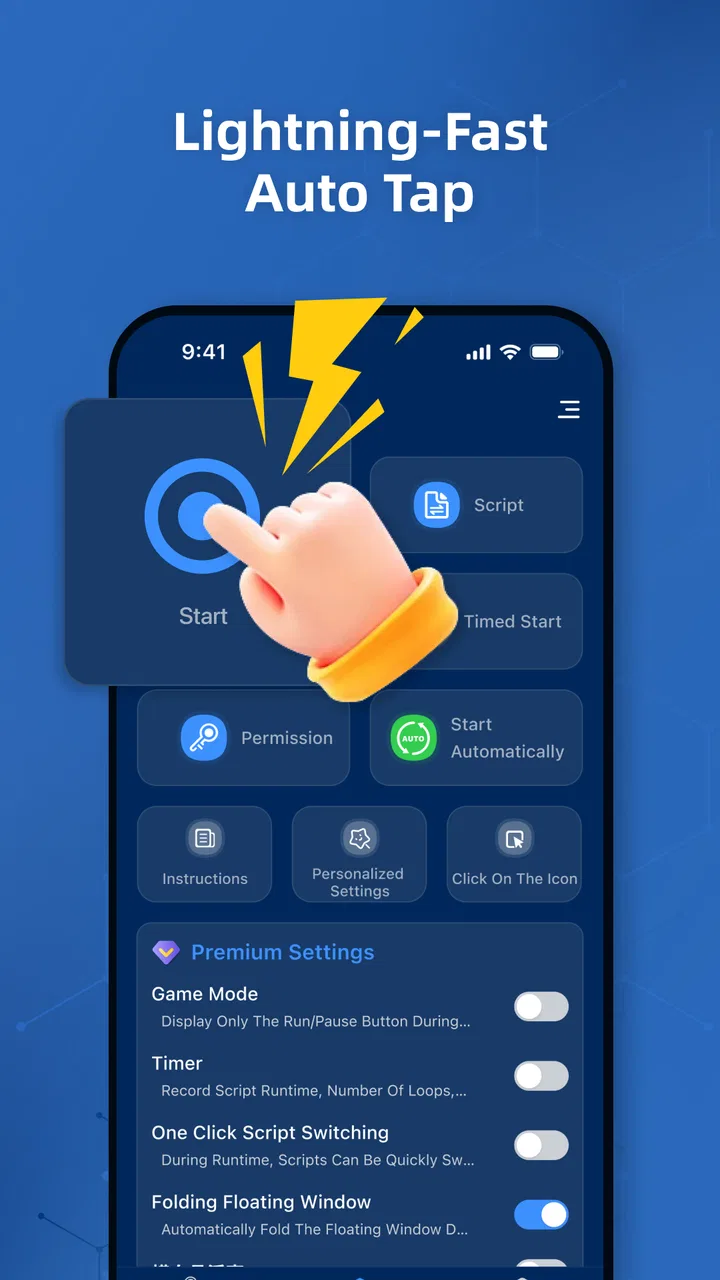
Auto Clicker Pro - Auto Tapper
- 3.2
- Rating
- 1.00M
- Installs
- Free
- Price

 Analysis by App-foxy
I downloaded Auto Clicker Pro - Auto Tapper expecting a narrow utility, and that is exactly what it feels like: a productivity app for repeating taps and swipes without keeping your finger on the screen. Its appeal is immediate. Set a gesture, place it where you need it, start the routine, and let the phone handle the repetitive part. The developer is Bright Prospect, and the app is free to install, with optional purchases ranging from $0.99 to $22.99 per item.
That simple promise is useful, but it also sets a high standard. An auto-tapping tool does not need dozens of features; it needs dependable positioning, understandable controls, and a setup process that does not become more tiring than the task it replaces. After using it, my view is that this app can earn a place in a very specific workflow, especially when a repeated gesture is genuinely tedious. It is less convincing as an everyday productivity companion for people who rarely need automation.
What the first week feels like
The first few sessions are driven by curiosity. I wanted to see whether I could create a repeatable action quickly, adjust its location, and stop it without confusion. The central idea is easy to understand: the app is designed to produce high-speed taps and controlled swipes, rather than asking me to repeat the same movement manually. That makes it suitable for repetitive screen tasks where precision matters more than creativity.
You May Also Like

 Blood Strike: 2.5 Anniversary
Blood Strike’s Loadouts Turn Every Drop Into a Tactical Gamble
A close look at Blood Strike’s custom loadouts: how fast access to signature weapons reshapes its battle royale rhythm, rewards preparation, and narrows the gap between fights.

 Pandora - Music & Podcasts
Pandora’s Music Is Easy to Start, but Harder to Recover
Pandora’s strength is its low-effort path from a seed to a station. Its weak spot is how much confidence it asks you to place in connection, setup, and quiet recovery.

 8 Ball Pool
 Is Built on Rivalries, Rematches, and Routine
A close look at the rivalries, rematches, shared routines, and unanswered safety questions that turn a quick pool match into a persistent mobile community.

 Samsung Music
’s Quiet Strength Is Playing What You Already Own
Its reach comes less from spectacle than from dependable access to a personal library. That simplicity is both the app’s strongest retention engine and its ceiling.

 AccuWeather: Weather Radar
AccuWeather Review: A Quick, Clear Forecast for Everyday Decisions
For everyday plans, the best forecast is the one you can understand quickly. AccuWeather makes rain timing, radar, and local conditions easy to act on, with a few trade-offs.

 Hill Climb Racing
Why Hill Climb Racing Still Turns Crashes Into One More Run
A tiny car, a bumpy hill and one more upgrade: Hill Climb Racing keeps resurfacing because its simple chaos makes every near-miss feel personal.
More From Our News Desk



A realistic example is checking a long sequence of on-screen items during a routine task. Instead of tapping the same control over and over, I can place the tap point once and allow the app to repeat it. Another use is a carefully timed swipe through a fixed interface. The benefit is not that the phone suddenly performs a complicated job independently; the benefit is that my hand is no longer the part doing the same motion hundreds of times.
The first-week appeal comes from that immediate relief. Repetitive tapping can be physically annoying, particularly when the screen target is small or the action must be repeated for a while. A tool that takes over the motion can also make the result more consistent. I found that the value depends heavily on preparing the gesture carefully. A marker placed slightly too high or low may interact with a different control, so the setup deserves more attention than the store summary suggests.
That is the first important trade-off: automation reduces repetition, but it does not remove the need for supervision. I would not start a sequence and walk away from the phone while important content is visible. Interfaces change, pop-ups appear, and a repeated tap can continue doing the wrong thing if the screen is no longer in the expected state. For me, the safest approach is to test a short run first, watch the result, and only then use a longer routine.
The app’s short name, Auto Clicker Pro, describes the main purpose clearly, but the “Pro” wording should not be mistaken for a guarantee that it replaces a full automation suite. I see it as a focused tap-and-swipe assistant. People looking for a visual workflow builder, scheduled phone maintenance, or broad device automation should set their expectations differently.
Learning the controls without wasting time
My advice for the initial setup is to begin with one gesture rather than trying to design a complicated sequence. Identify the exact screen location, choose a modest repetition pattern, and observe how the target responds. This makes mistakes easier to spot and helps reveal whether the task is stable enough for automation in the first place.
For swipes, the starting point and ending point matter equally. A tap usually has one critical location; a swipe has a path, direction, and timing. That means a swipe routine is more sensitive to changes in the interface. If a page loads differently or a control shifts position, the same gesture may no longer produce the intended result. I would use this app for predictable screens, not for layouts that rearrange themselves frequently.
There is also a practical habit worth adopting: keep a manual fallback. Before relying on an automated gesture, I make sure I know how to stop it and return to normal interaction. That is especially important when experimenting with fast taps. Speed is useful only when the action remains controllable. A slower, tested sequence is usually better than an aggressive setting that creates errors.
Where it fits beside ordinary alternatives
The usual alternative is simply tapping or swiping by hand. Manual interaction wins when the task is short, changes constantly, or involves decisions between actions. It is also the better choice when accuracy depends on reading the screen rather than repeating a fixed location. Auto Clicker Pro becomes more attractive when the action is predictable and physically repetitive.
Compared with a broader automation tool, this app is easier to understand because its purpose is narrower. A general automation system may be more capable for multi-step routines involving different conditions, apps, or triggers, but it can also demand more learning and maintenance. Here, the trade-off is straightforward: less conceptual overhead, but a smaller range of jobs.
For a user who only needs occasional repeated taps, the free entry point is helpful. The app can be tried without committing money first, while optional purchases are available inside the experience. I would not buy anything immediately. I would first confirm that the gesture works reliably on the exact screen I care about and that the setup saves enough time to justify continued use.
Does it still matter after the novelty fades?
After the first week, the interesting question is no longer whether the app can tap automatically. The question is whether I have recurring tasks that benefit from it. In my experience, the answer is yes only when the same interaction appears repeatedly in a stable form. If the need disappears after one experiment, the app quickly becomes another utility sitting unused on the phone.
That makes the month-to-month value highly personal. Someone who regularly handles repetitive touch actions may open it often and appreciate the reduced strain. Someone who mostly browses, messages, edits documents, or manages ordinary phone settings may find that manual control is faster overall. The app does not create productivity by itself; it removes one narrow source of friction when the workflow is suitable.
A good recurring use case has three qualities: the target stays in a predictable place, the action can be safely repeated, and the result is easy to verify. When all three are present, the tool can become a small but dependable part of a routine. When one is missing, the savings shrink quickly. A changing layout makes positioning unreliable, an uncertain result requires constant checking, and an unsafe action can turn convenience into cleanup.
I also found that automation works best as a helper rather than a replacement for attention. For example, I might use a repeated gesture while monitoring the screen and stop the routine when the expected state changes. This is less dramatic than fully unattended automation, but it is more realistic. The app handles the boring motion while I remain responsible for recognizing when the job is finished.
Maintenance is the hidden cost
The main maintenance burden is not necessarily opening the app; it is keeping the gesture aligned with the task. If an interface changes, a saved position may need to be adjusted. If the phone is held differently, the routine may need another test. If the task changes from tapping to swiping, I may need to rebuild the setup instead of treating the old one as universal.
This is why I would avoid creating a large collection of routines unless each one has a clear purpose. A crowded set of old gestures can be more confusing than helpful. I prefer naming or organizing routines around the task they serve, then deleting anything I no longer trust. The less clutter there is, the easier it is to identify the correct action before starting.
Testing after changes is another habit that pays off. A short supervised run can reveal a misplaced tap before it repeats an unwanted action many times. I would especially retest after changing display settings, switching orientation, or using a different screen layout. These are not reasons to reject the app; they are reminders that screen-position automation is inherently tied to the environment in which it was created.
The current version is 1.2.0, and the app supports devices running Android 8.0 or later. That gives it a broad practical range for Android users, but compatibility with the operating system is only one part of the experience. The real question is how well the routine behaves on the particular device, screen, and app where it will be used.
What causes fatigue over time
The first source of fatigue is repeated setup. If I need to configure the same action from scratch every time, the convenience becomes less convincing. The second is supervision. A routine that requires constant correction may save finger movement but not attention. The third is uncertainty: when I cannot immediately tell whether the gesture completed the intended action, I hesitate to trust it.
There is also a psychological cost to over-automation. It is tempting to use a fast tap sequence simply because it is available, even when the manual action would take only a few seconds. In those cases, opening the tool, positioning the gesture, checking the result, and stopping it can be more work than doing the task normally. I get the best results when I reserve it for repetition that is genuinely tedious, not for every minor interaction.
Fast tapping can create another kind of friction: mistakes become faster too. A misplaced gesture is not harmless just because the app is doing the work. I recommend starting conservatively, confirming the target, and increasing speed only when the result remains accurate. Precision should come before spectacle. The store summary highlights speed, but my lasting impression is that control matters more than maximum pace.
Users should also think about context. I would not use an auto-tapper for actions where an accidental repeat could delete, submit, purchase, or otherwise cause an unwanted result. The app is best suited to reversible, observable tasks. If the consequence of one extra tap is serious, manual control is usually the wiser option.
Who will keep using it?
This productivity app is a good fit for people with a clear, repeatable touch routine. It may also help users who experience discomfort from performing the same tap or swipe for extended periods. The strongest candidates are not necessarily technical users; they are people who can describe their task precisely and recognize when the screen has reached the expected state.
I would be more cautious recommending it to someone who wants “set it and forget it” automation across changing apps. The tool’s usefulness depends on fixed positions and predictable responses. It is also not the right choice for users who need complex conditions, branching steps, or automation based on content recognition. In those situations, a broader solution may justify its extra complexity.
The Everyone content rating makes the app approachable for a general audience, but that does not mean every use is equally suitable for every person. A younger or inexperienced user may need guidance about testing gestures and stopping them promptly. The important lesson is simple: repeated input should be used where the outcome is understood, not merely because the app can produce it.
Its reach is already substantial, with more than a million installs, while the average rating sits at 3.2 from around 2.3 thousand ratings. I read that combination as a sign of strong curiosity and mixed satisfaction rather than automatic proof of quality. Many people are clearly interested in this type of tool, but a tapper’s success depends so much on the user’s device and task that broad popularity cannot replace personal testing.
Paying for continued use
Because the app is free, I can judge its practical value before considering an optional purchase. That is the right order for this kind of utility. I would only spend money if I had a recurring workflow, the routine behaved consistently, and the available purchase addressed a limitation I actually encountered. Paying for features before proving the habit would be easy to regret.
The in-app purchase range runs from $0.99 to $22.99 per item, so the possible commitment varies considerably. I would look at the exact benefit attached to any purchase rather than assuming a higher price automatically means a better experience. For an occasional user, the free version may be enough. For someone who relies on the tool repeatedly, a purchase could make sense only if it reduces a specific source of friction.
My broader concern is long-term maintenance. A paid upgrade cannot make an unstable screen layout stable, and it cannot remove the need to verify sensitive actions. The most valuable improvement for a regular user would be dependable routines that remain easy to understand and adjust. If the app provides that in the workflow I need, its cost becomes easier to evaluate; if not, payment will not solve the underlying mismatch.
My long-term verdict
After the novelty wears off, Auto Clicker Pro - Auto Tapper remains useful, but only as a focused instrument. I would keep it installed if I had a recurring, low-risk task involving the same taps or swipes. In that situation, it can spare my hand from repetitive work and make a routine feel less tedious. I would not keep it merely because automatic tapping sounds impressive.
The app earns its place through a simple test: does it save more effort than it takes to configure, supervise, and maintain? For stable screen layouts and observable actions, the answer can be yes. For short tasks, changing interfaces, or actions requiring judgment, manual interaction is often quicker and safer. That distinction is the most important thing to understand before downloading it.
Bright Prospect has positioned this as a free productivity utility rather than a broad automation platform, and that narrow identity is both its strength and its limitation. I like the direct use case, the low barrier to trying it, and the possibility of reducing repetitive touch work. I dislike the dependence on exact screen placement and the temptation to confuse speed with reliability.
My recommendation is therefore selective: try it if you can name a repeated tap or swipe that you perform often, test it on a harmless task, and build a habit of checking the first few repetitions. Skip it if you want complex cross-app automation or if your tasks change too much for fixed gestures to remain dependable. For the right routine, this app can become a quiet time-saver. For everyone else, it is likely to be interesting for a few sessions and then forgotten.
FAQs for Auto Clicker Pro - Auto Tapper
01What is Auto Clicker Pro - Auto Tapper used for?
Auto Clicker Pro - Auto Tapper is an app designed to automate repetitive tapping on your screen, making it useful for various tasks such as playing games that require continuous tapping, speeding up processes in productivity apps, or automating tasks that would otherwise require manual input.
02Is Auto Clicker Pro - Auto Tapper safe to use?
Yes, Auto Clicker Pro - Auto Tapper is generally safe to use. It doesn’t require rooting your device and operates within the permissions you grant it. However, always download from official sources to avoid malicious versions, and be aware of app permissions to protect your device's security.
03Does Auto Clicker Pro - Auto Tapper work on all apps and games?
While Auto Clicker Pro - Auto Tapper is designed to work with many apps and games, it may not be compatible with all due to specific app restrictions or updates. Some apps might have protections against automated inputs, so it's best to check compatibility with your specific needs before relying on it.
04Can Auto Clicker Pro - Auto Tapper affect my device’s performance?
Using Auto Clicker Pro - Auto Tapper can affect your device’s performance if overused, especially on older or lower-end models. Excessive automated tapping can lead to battery drain, overheating, or slower performance. Always monitor your device’s performance when using the app extensively.
05Is Auto Clicker Pro - Auto Tapper customizable?
Yes, Auto Clicker Pro - Auto Tapper offers customization options, allowing users to set the tap interval, duration, and location. These features enable users to tailor the app’s functionality to suit their specific needs, whether for gaming, productivity, or other applications.
Pros
- Customizable tap intervals and duration.
- User-friendly interface with easy setup.
- Supports multiple app usage simultaneously.
- Doesn't require root access for installation.
- Lightweight with minimal battery consumption.
Cons
- Limited compatibility with some older devices.
- May trigger app security warnings occasionally.
- Requires in-app purchases for advanced features.
- Ads can be intrusive in the free version.
- Potential for unintended taps if not configured.

Auto Clicker Pro - Auto Tapper
Gallery